

Zoom
✨ Auto Provisioning
Authentication method
Username & password
Required permissions
Admin
Required metadata
None
MFA
Supported. Setup details here.
How to enable MFA
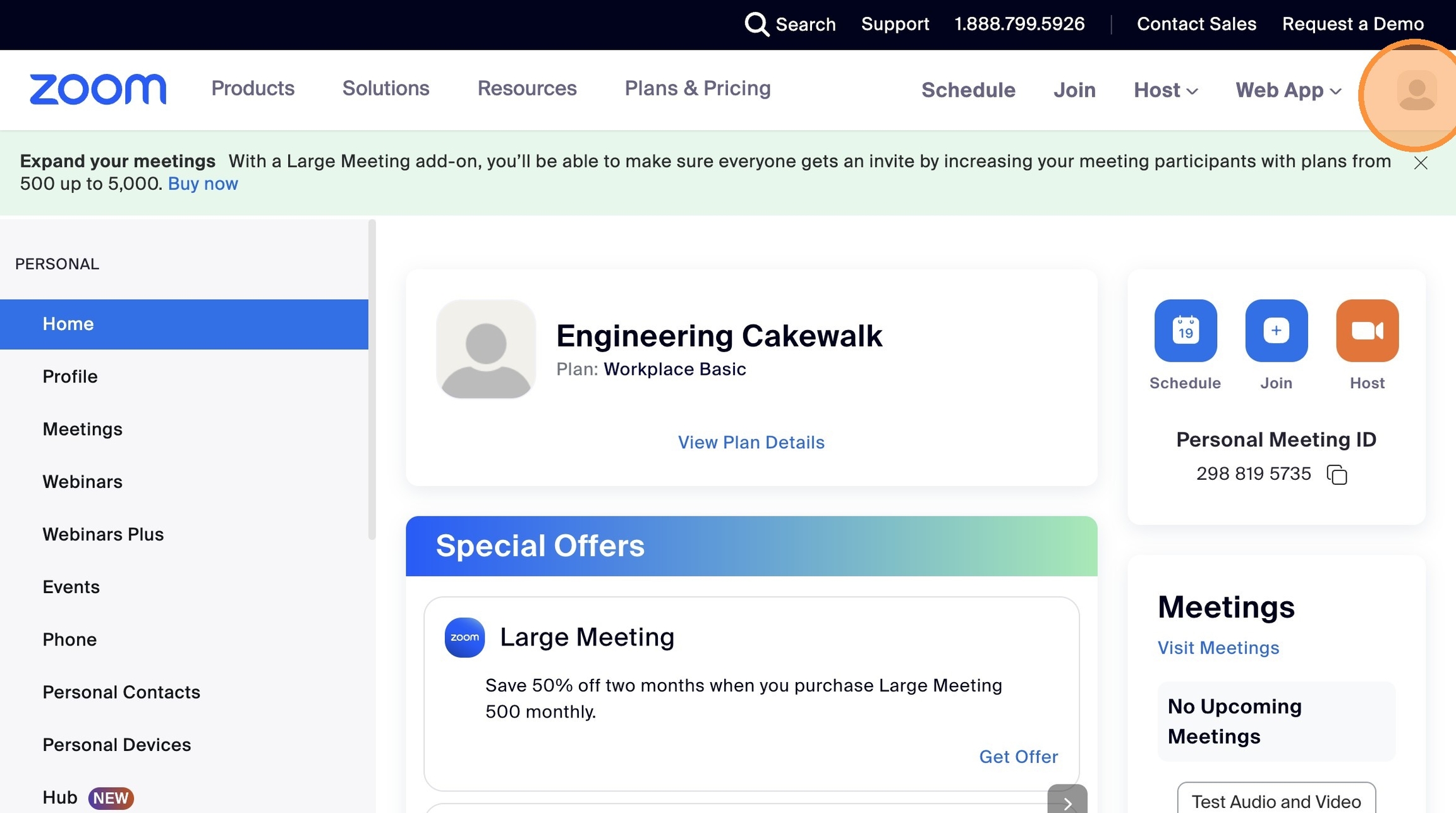
1. Click on your user's avatar in the top right corner of your screen.
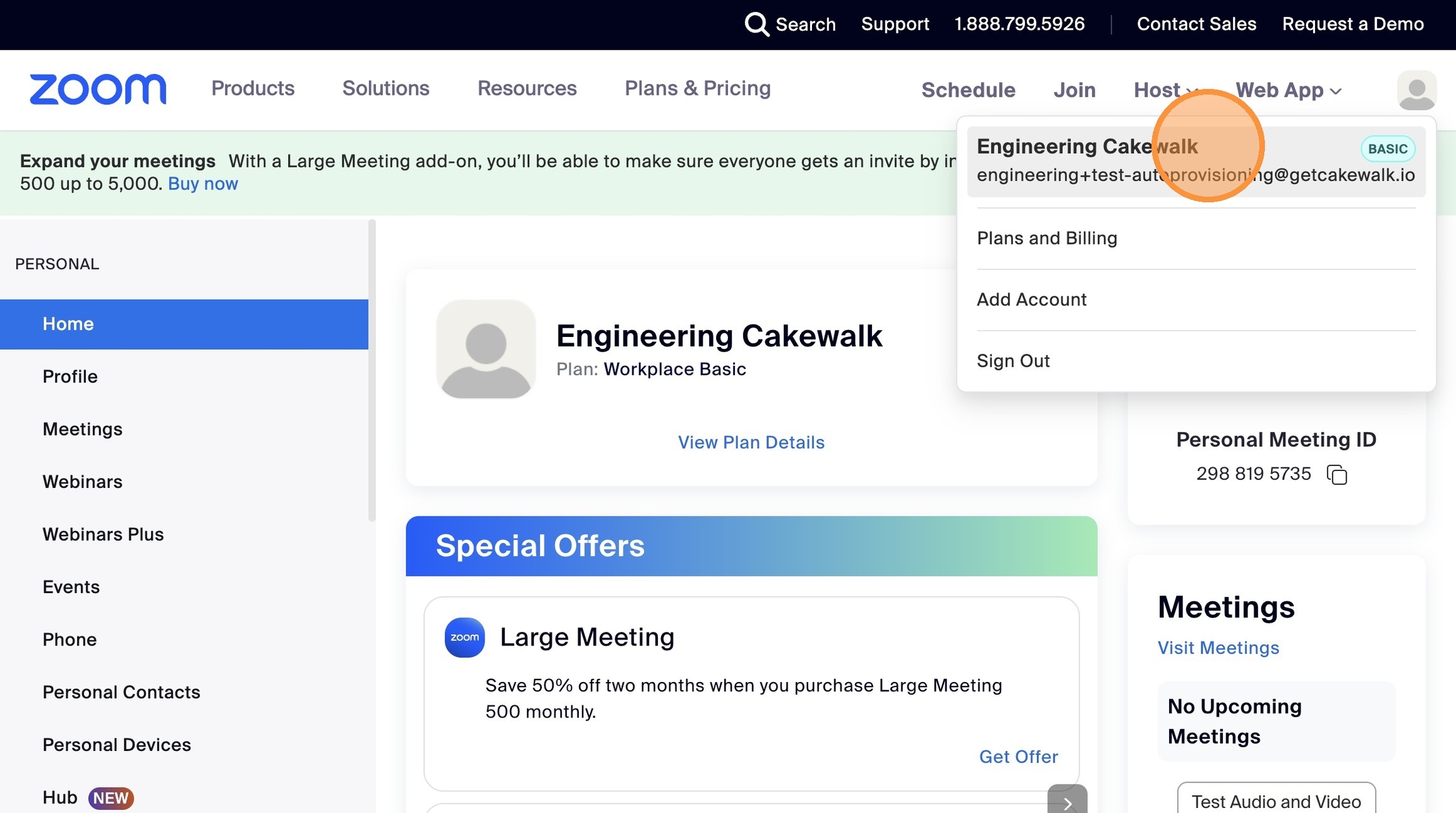
2. Select your user.
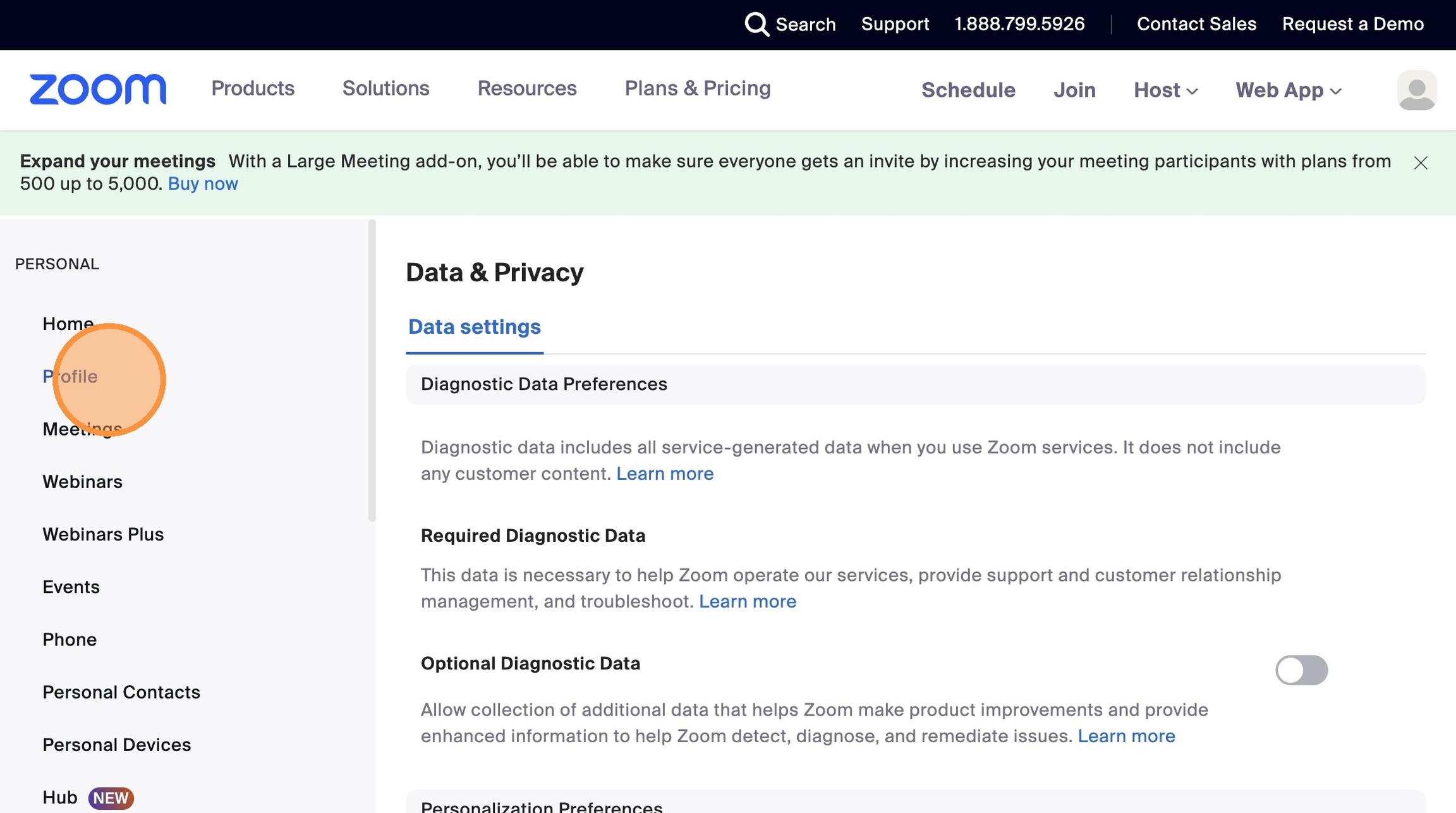
3. Click "Profile"
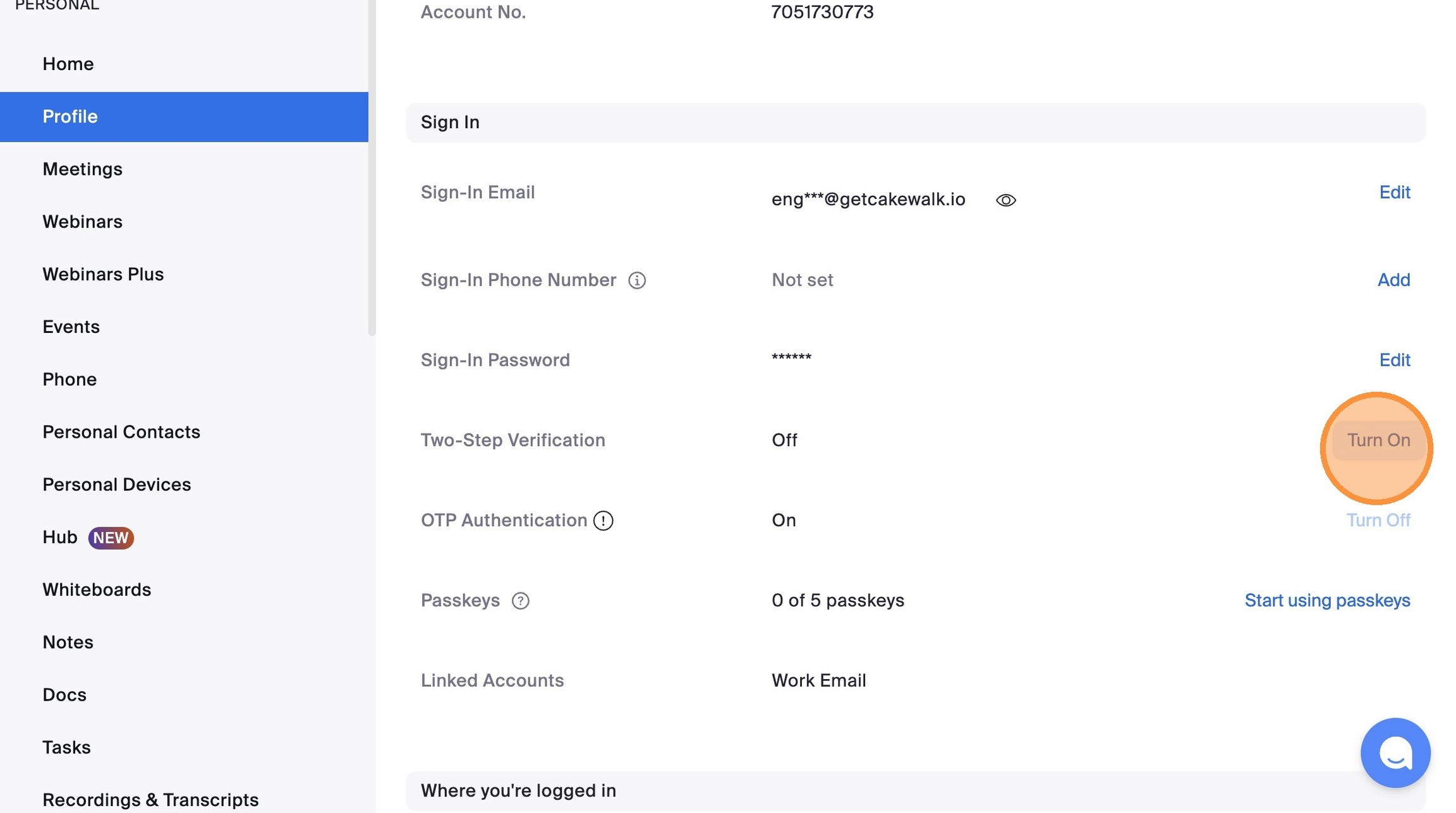
4. Click "Turn On" next to Two-Step Verification
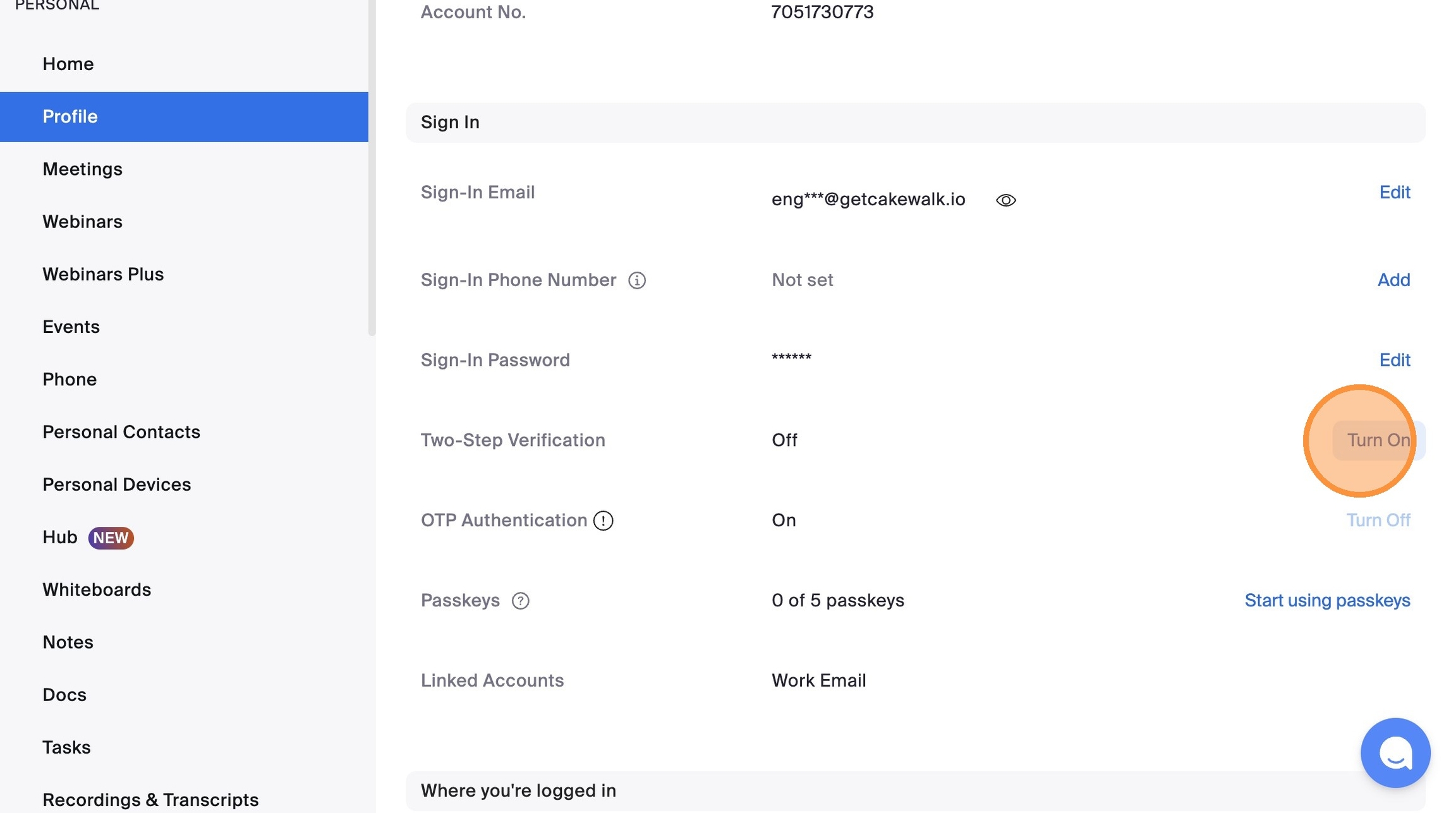
5. Click "Turn On"
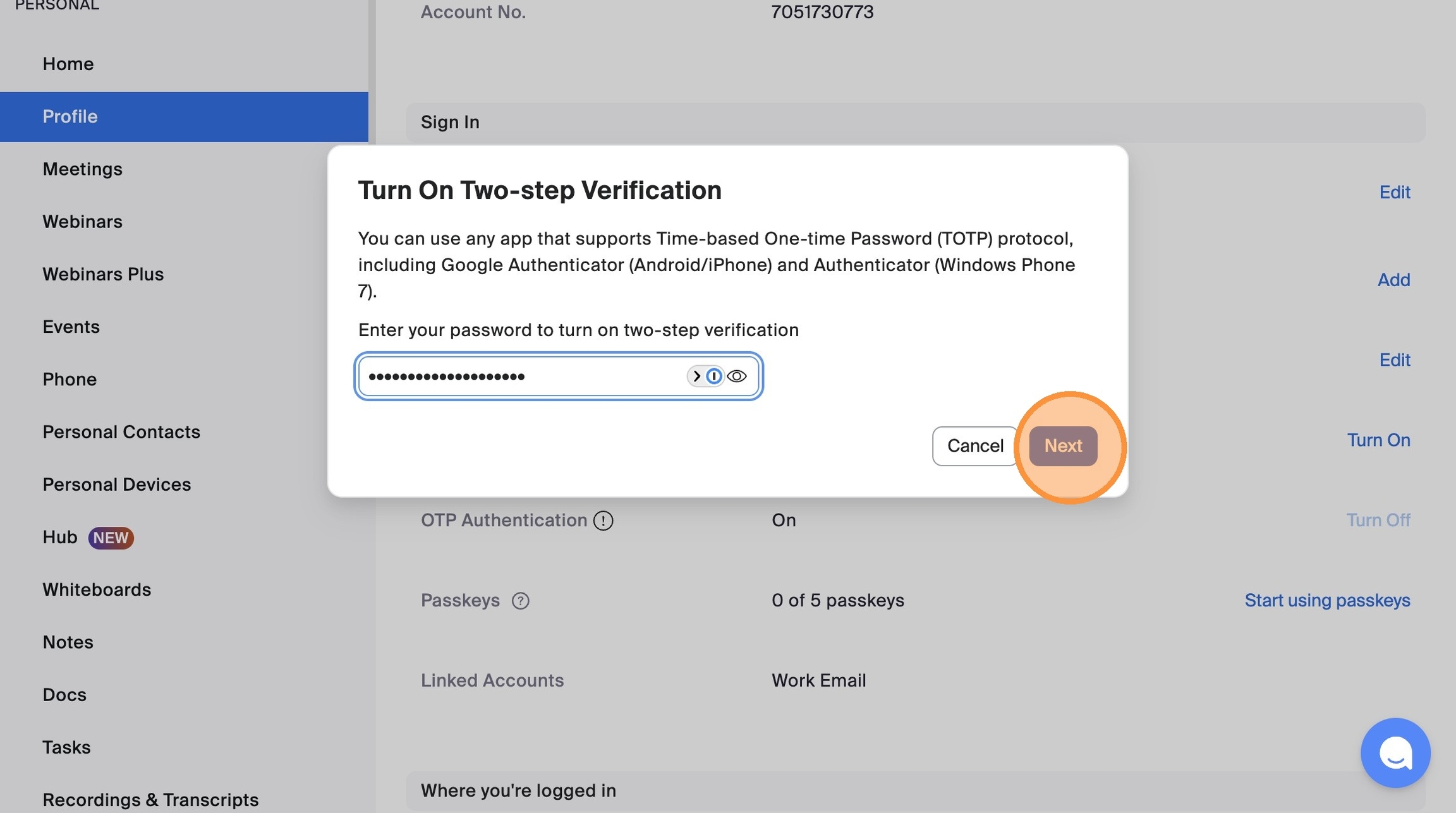
6. Enter your password and click "Next"
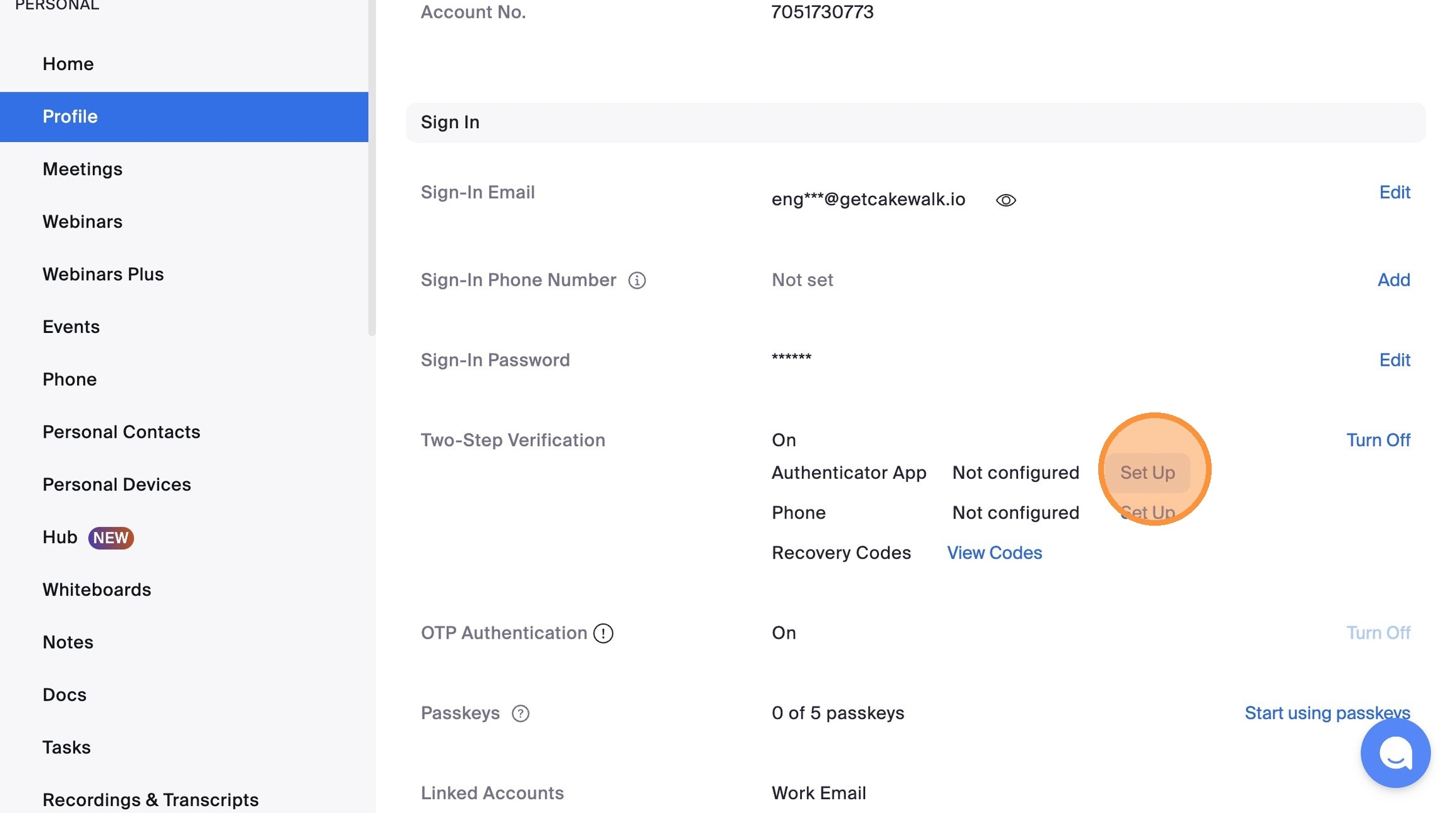
7. Click "Set Up" next to "Authenticator App"
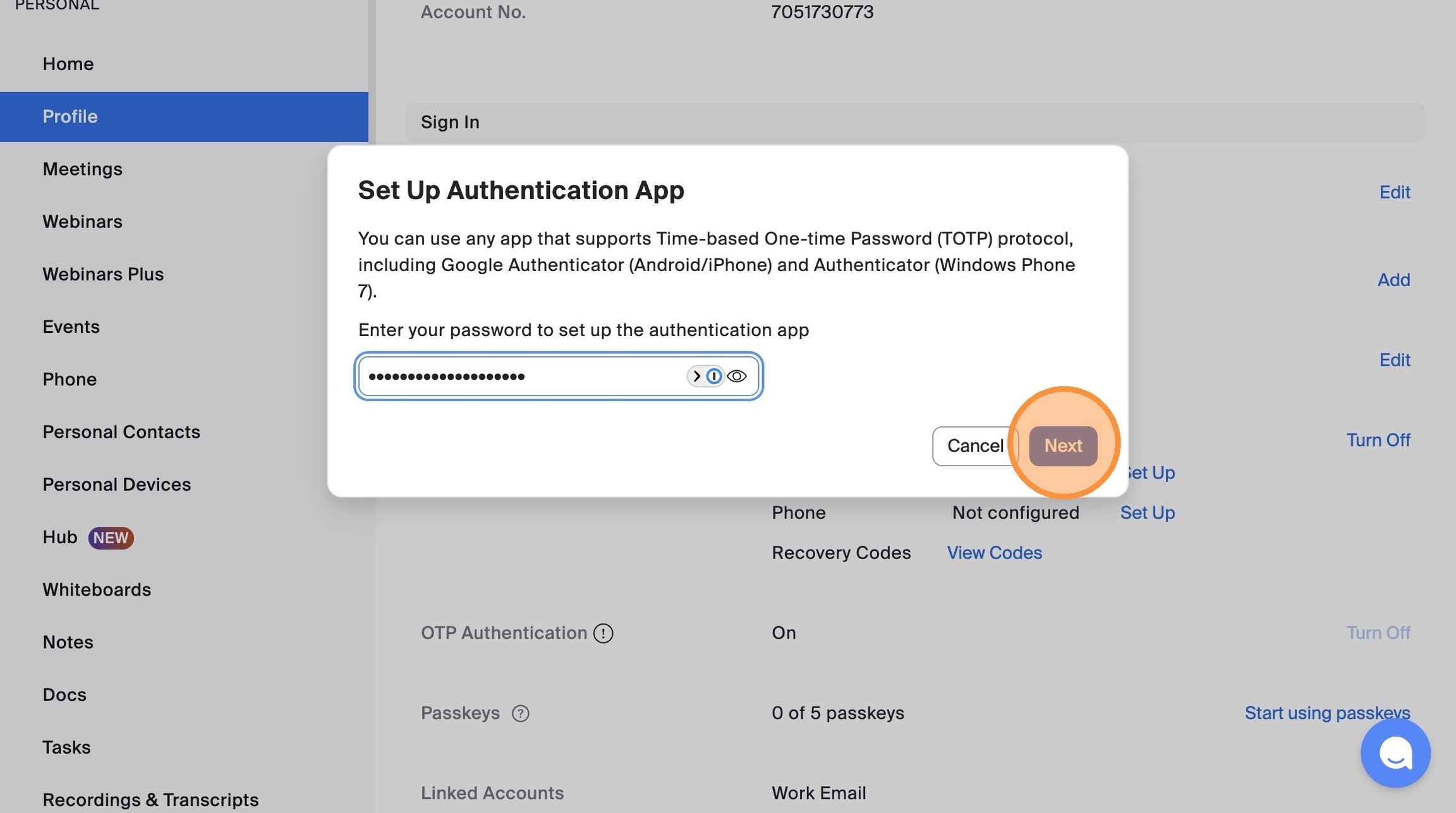
8. Enter your password and click "Next"
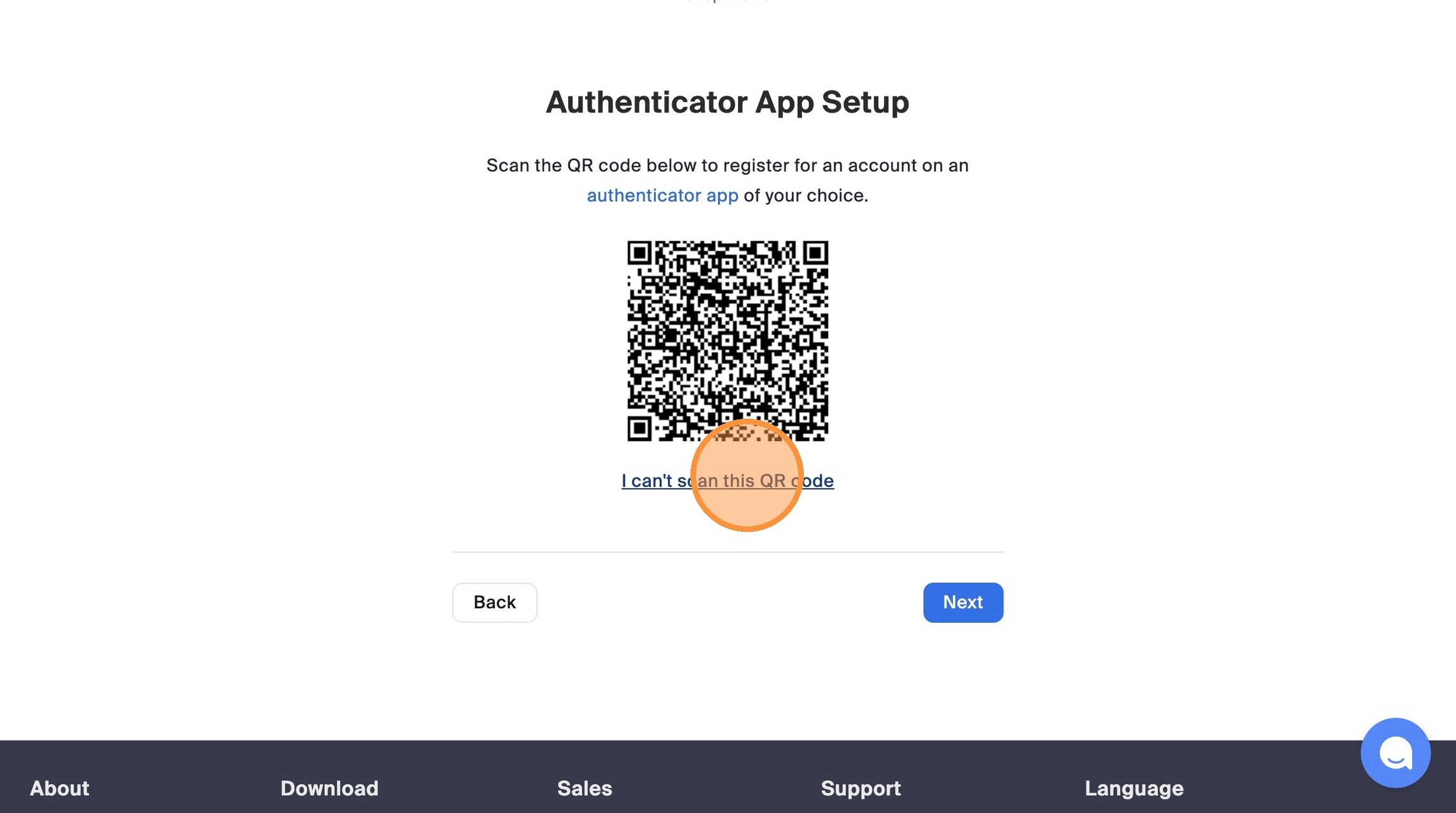
9. Click "I can't scan this QR code"
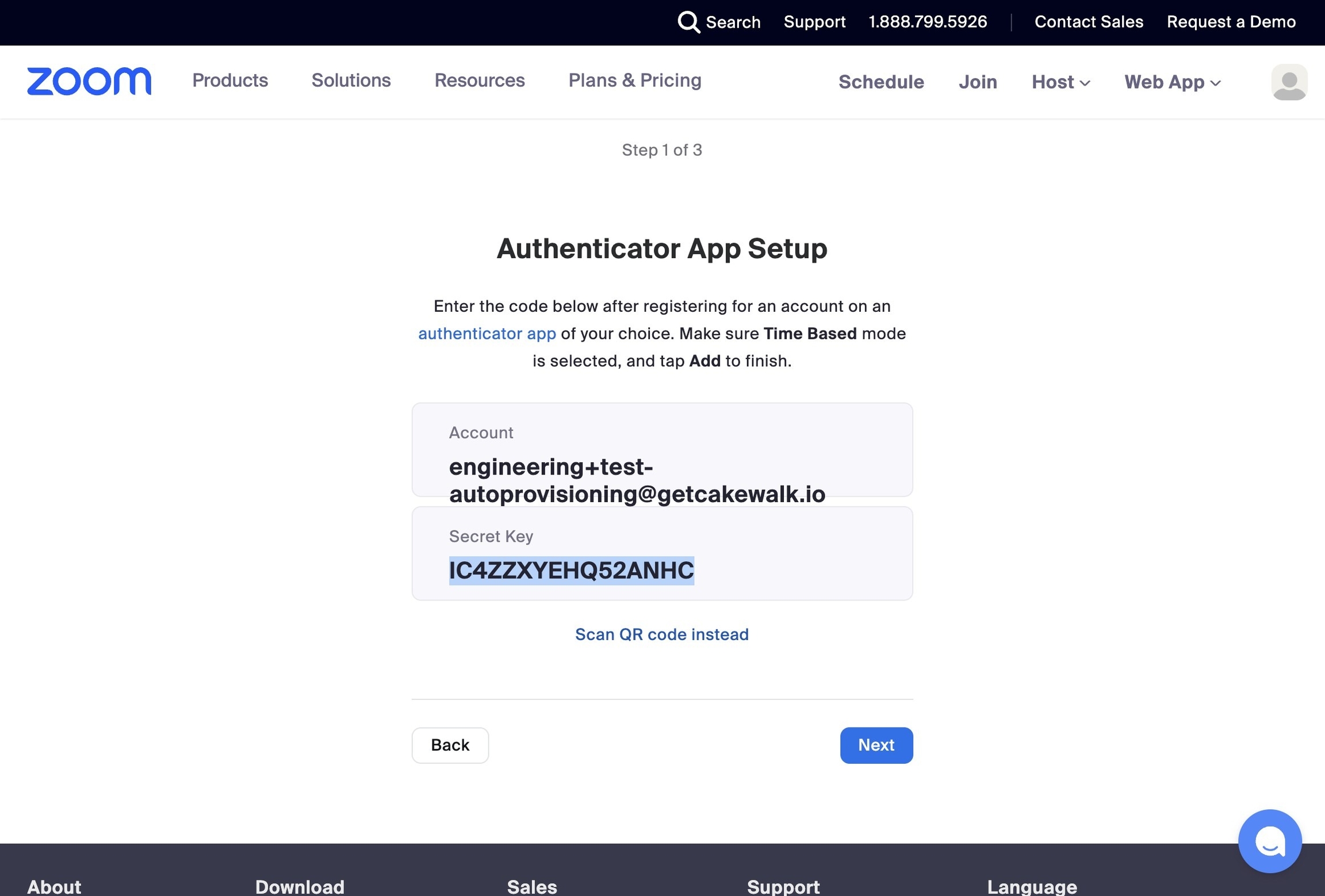
10. Copy the "Secret Key" shown
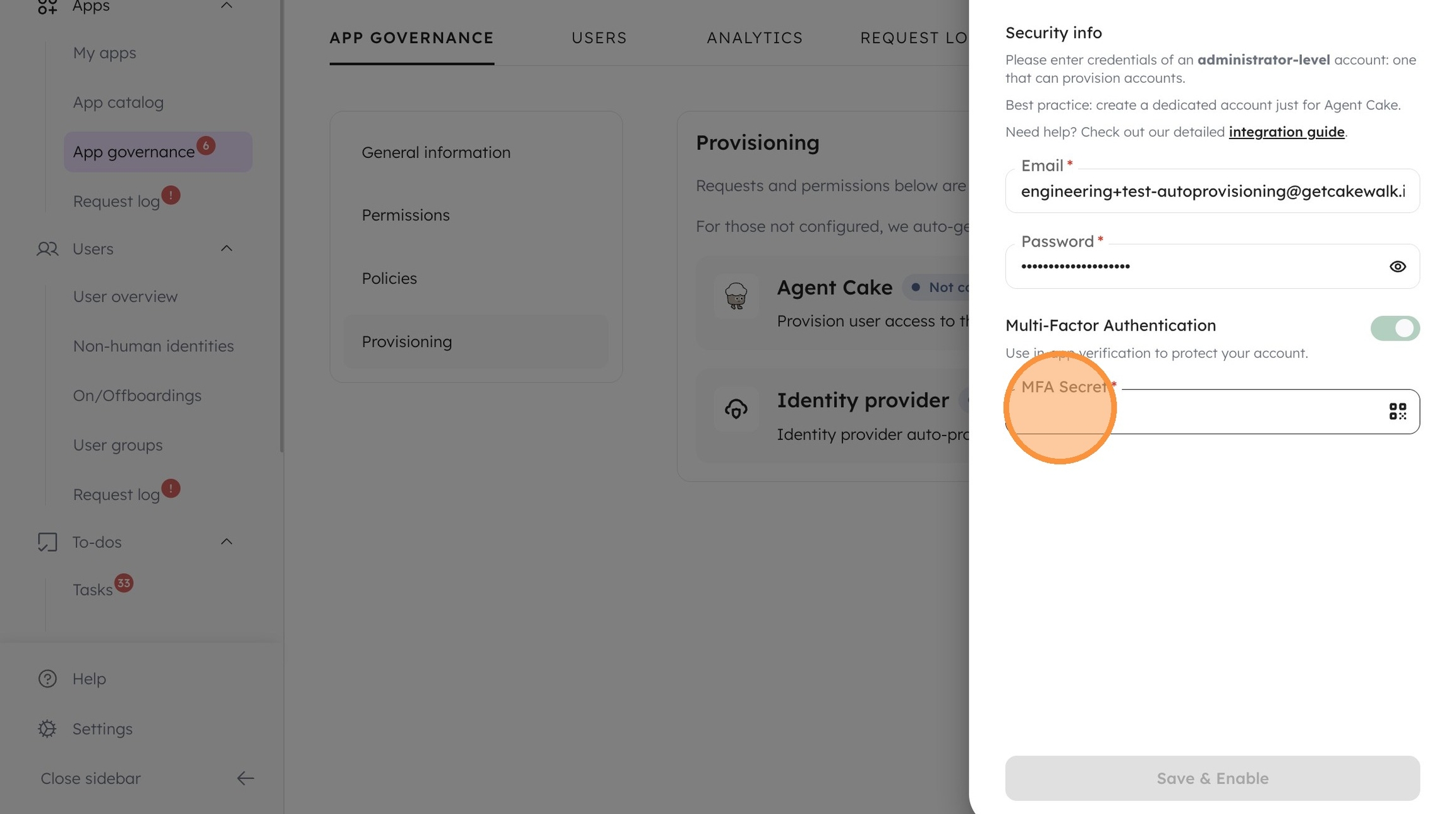
11. Switch to Cakewalk
12. Paste the "Secret Key" you just copied into the "MFA Secret" field.
13. Copy the "One-Time Password" shown.
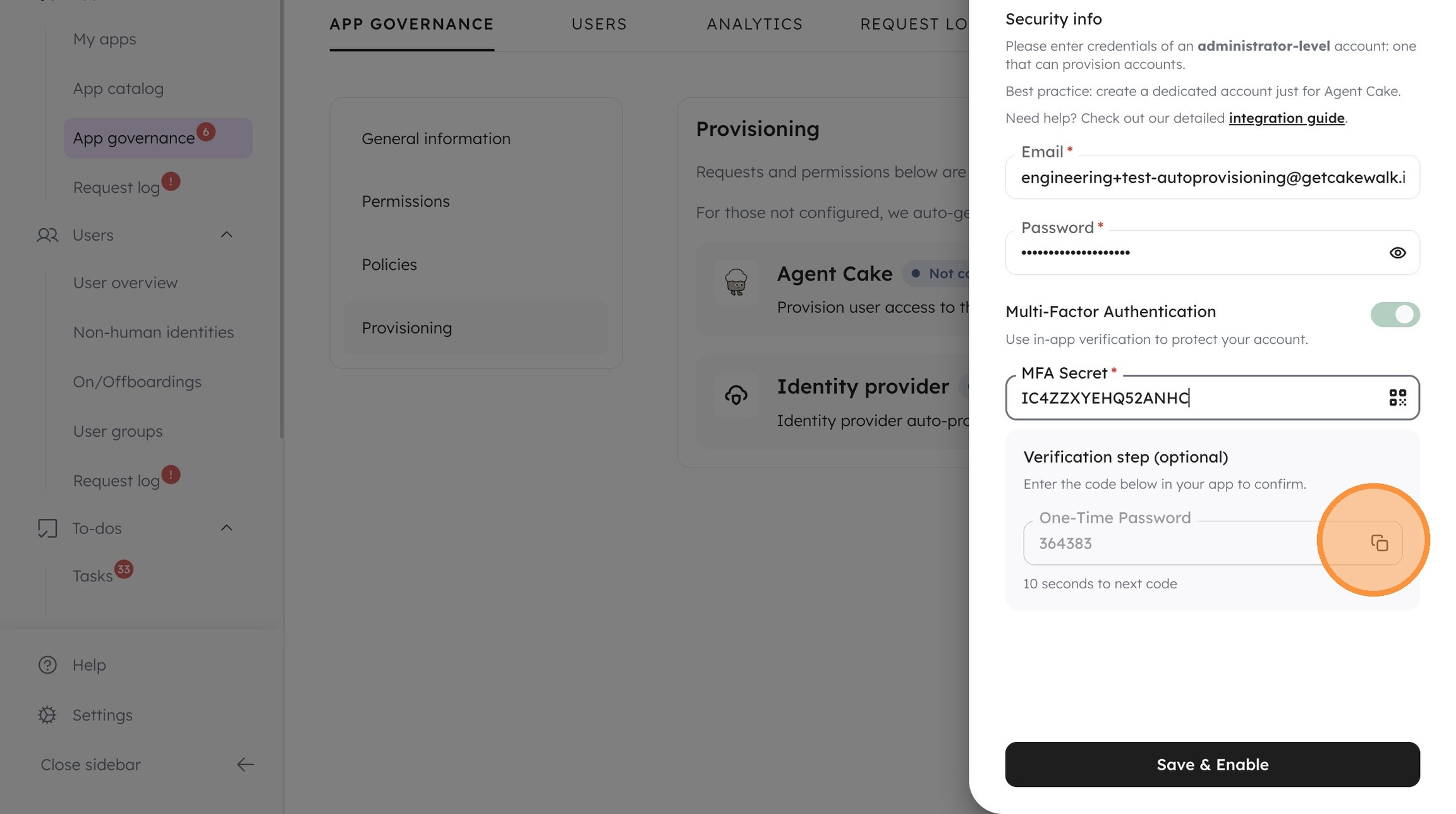
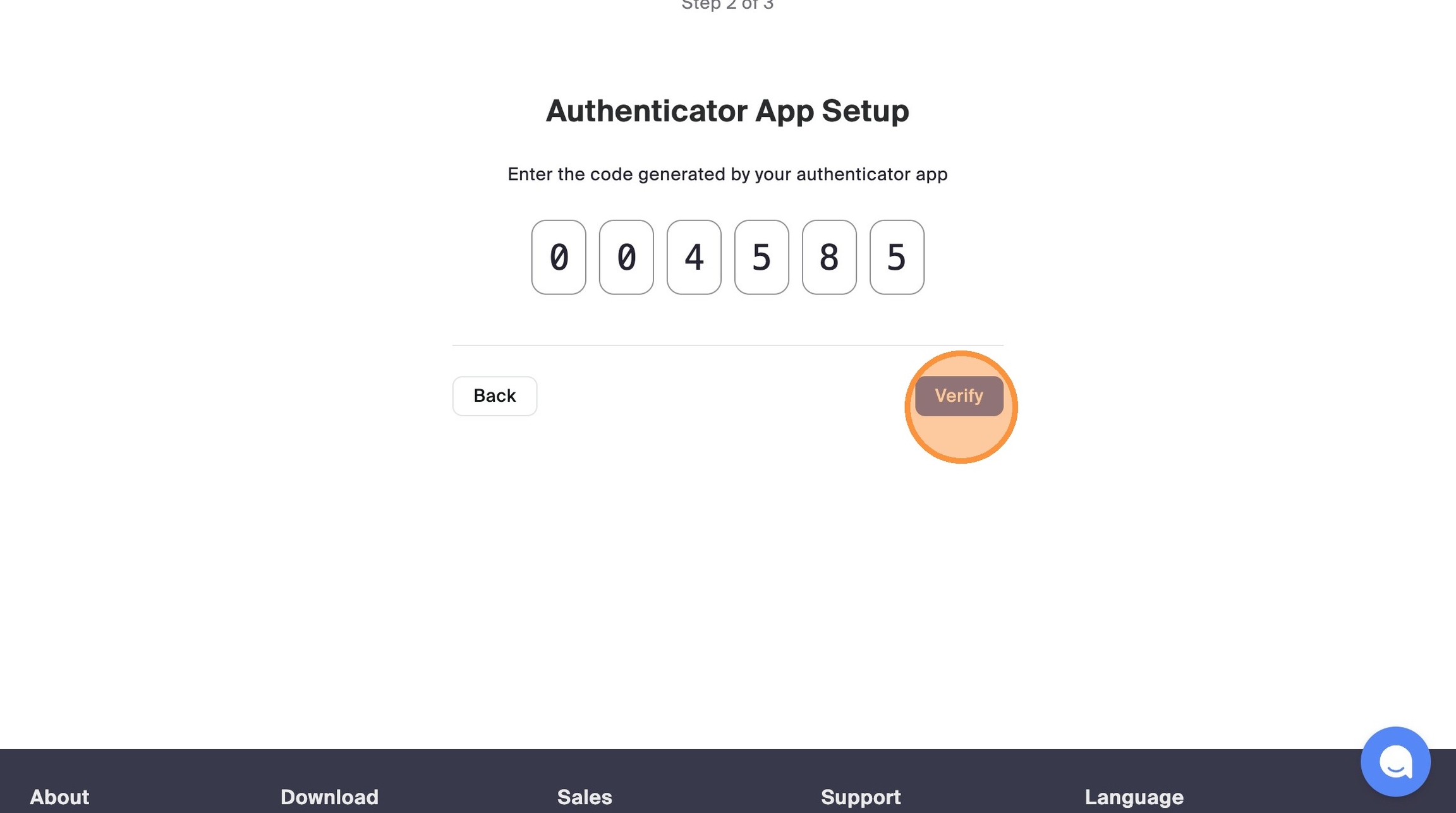
14. Go back to Zoom and paste the code into corresponding field to complete the process.
Last updated
Was this helpful?